
As an Amazon Associate I earn from qualifying purchases. This post may contain affiliate links. Read our disclosure.
Quick answer: most label printer problems come from three things: labels loaded the wrong way, calibration after changing label stock, and print scaling in the PDF dialog. Check those first before contacting support.
Our top picks

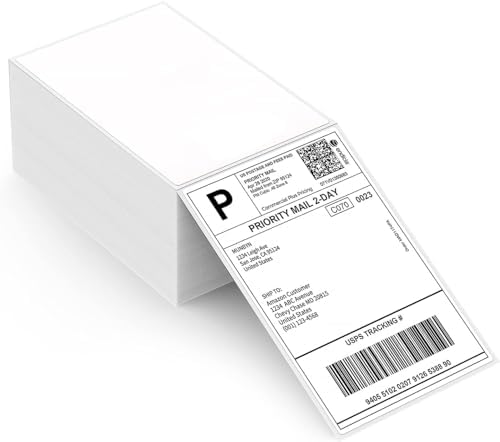
| # | Problem | Likely cause | Fix |
|---|---|---|---|
| 1 | Labels come out blank | Coated side facing away from the print head | Flip the roll or stack; scratch-test to find the coated side |
| 2 | Prints skip labels or feed several | Gap sensor not calibrated | Run auto calibration after every label change |
| 3 | Label prints small in a corner | PDF printing as a letter page | Set paper size to 4×6 and scale to 100% |
| 4 | Label cut off at the edges | “Fit to page” or wrong margins | Use actual size; set margins to none in the driver |
| 5 | Faded or grey print | Low darkness setting, dirty print head, old labels | Raise darkness/density, clean the head with an alcohol wipe, try fresh labels |
| 6 | Barcode will not scan | Scaled print or white lines from a dirty head | Print at 100%, clean the head, test with a scanner |
| 7 | Bluetooth keeps disconnecting | Pairing through system settings, distance, sleep mode | Pair through the maker’s app or driver; keep the printer close; turn off power saving |
| 8 | Mac cannot find the printer | Missing driver, or Bluetooth not supported on Mac for that model | Install the macOS driver and use USB if Bluetooth is not supported |
Prevent problems
- Clean the print head every few rolls.
- Keep labels away from heat and sunlight; direct thermal stock darkens with heat.
- Stick to one label brand where you can, so calibration stays stable.
Still stuck?
If a printer still fails after these fixes, compare models in our Jadens review and direct thermal vs thermal transfer guide.