
As an Amazon Associate I earn from qualifying purchases. This post may contain affiliate links. Read our disclosure.
Quick answer: in Seller Center, open the order, choose Ship items, select Ship with Walmart, buy the label, then print the PDF to your thermal printer with paper size set to 4×6 and scale at 100%. Set your default label format to 4×6 first so every label comes out right.
Our top picks

This is the workflow our team uses daily on the Walmart accounts we manage.
Step 1: Set your default label settings
Walmart recommends configuring your default shipping and label settings before you buy labels, so they apply to all future orders. Choose a 4×6 label format if you use a thermal printer. (Walmart Marketplace Learn)
Step 2: Buy the label
- Go to Orders in Seller Center and open an unshipped order.
- Choose Ship items, then under Shipping details select Ship with Walmart.
- Enter the package type, weight and dimensions. Weigh the packed parcel; guessing leads to carrier adjustments you pay for.
- Select Estimate rate, pick the service, then Buy Shipping. The first time, you accept Walmart’s and the carriers’ terms.
Ship with Walmart labels include order protection up to $100, with an add-on for higher-value parcels (Walmart Developer docs).
Step 3: Print on your thermal printer
- Select Print label. The label opens as a PDF.
- In the print dialog choose your thermal printer.
- Set paper size to 4 x 6 in and scaling to 100% / actual size. Turn off “fit to page”.
- Print one test label, check it fills the label and the barcode is crisp, then print the rest.
- Once it is on the parcel, select Mark as Shipped. After that the label cannot be cancelled.
Fixes for common problems
| Problem | Fix |
|---|---|
| Label prints small in one corner | The PDF is printing as a letter page. Set paper size to 4×6 in the dialog and in the printer driver. |
| Barcode looks squashed | Scaling is on. Set to 100% / actual size. |
| Wrong label size on every order | Change the default label format in Seller Center shipping settings. |
| Need to change something after buying | Use Discard label before marking as shipped, then buy again. |
Gear for this workflow
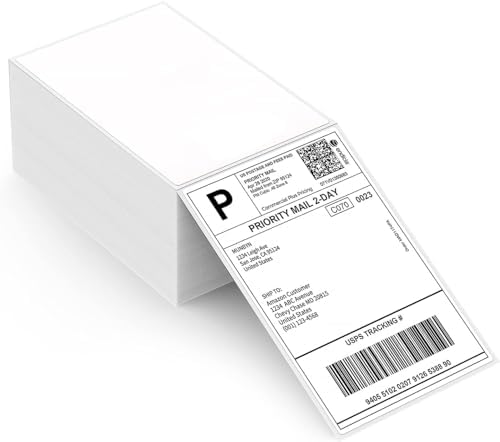
A Jadens Bluetooth 4×6 printer covers single-workstation printing, and 500-label fanfold stacks keep cost per label down.
More: our Jadens printer review.